

How to Preserve Netlist & BOM Accuracy During EDA Migration
- Posted On:
- October 24, 2025
- Category:
- Ecad
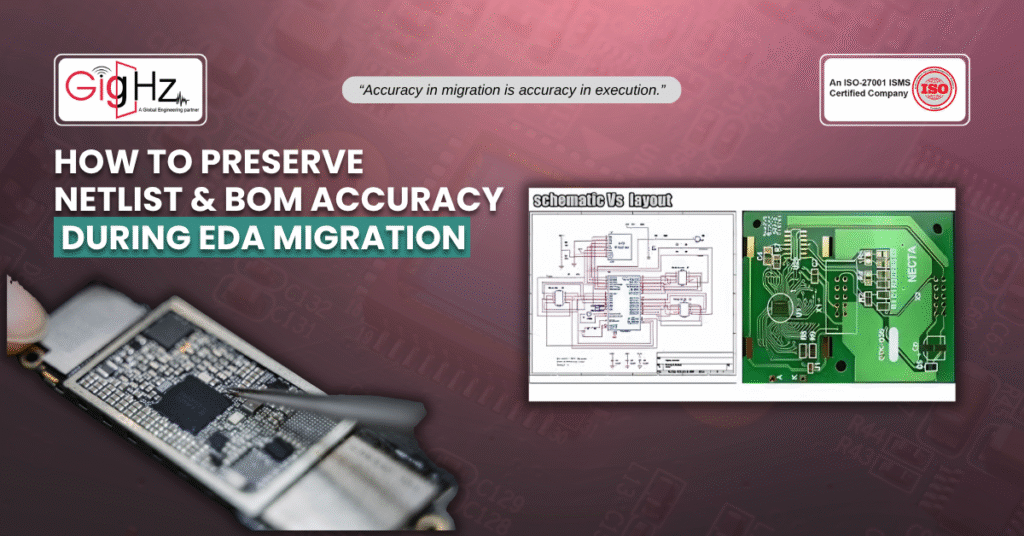
As we all know, it goes without saying that switching ECAD platforms is never as simple as clicking “export” and “import.”
Yes,
If you’ve ever tried migrating a project from one tool to another, you are well familiar with the risk of data slipping through the cracks.
On the other hand, symbols lose pin mappings, footprints get later on get’s mismatched, and also the BOM doesn’t look the same anymore at all.
Most importantly, the toughest part is when a single error in ECAD tool migration BOM netlist accuracy can derail an entire project timeline.
For example, migrating from Altium to Cadence can break pin mappings, while moving from OrCAD to Mentor often leads to BOM metadata mismatches — each tool comes with its own migration issues.
Now, this is why engineers lose sleep during EDA conversions.
Likewise, the schematic may look intact at first glance, but unless you have a structured process to preserve netlist during EDA migration and maintain BOM accuracy in tool conversion, you’re leaving design integrity to chance.
So how do you protect your data, ensure EDA tool data integrity, and pull off a smooth cross-platform ECAD project transfer?
Let’s break it down.
Risks of ECAD Tool Migration
Nowadays, when companies decide to migrate tools for instance from Altium to Cadence, or from Mentor to OrCAD — it’s usually for long-term benefits like licensing costs, collaboration features, or advanced analysis modules.
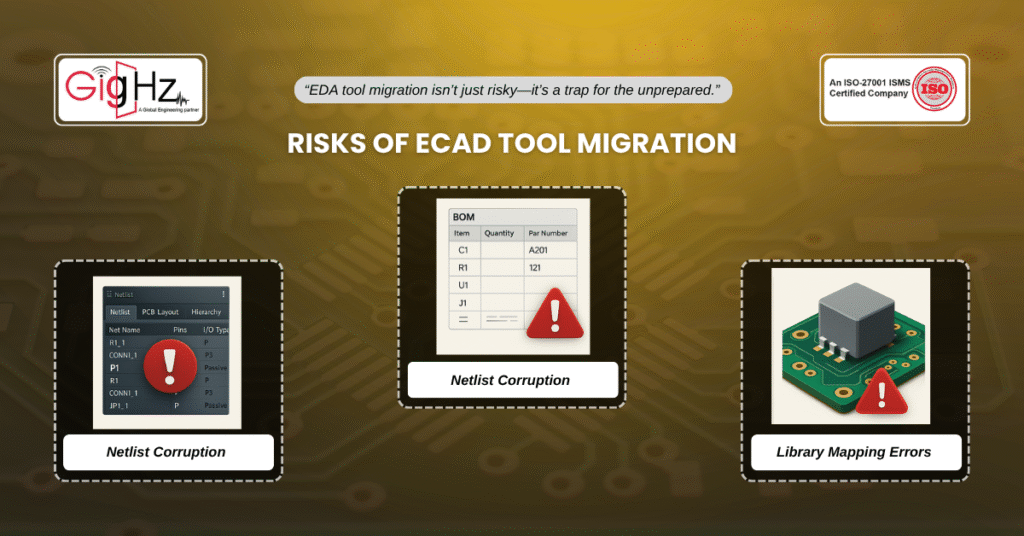
But in the short term, you face three major risks:
- Netlist Corruption – Missing nets, swapped pin numbers, or duplicated signals. Without clean netlist transfer, the PCB layout won’t match the schematic.
- BOM Inaccuracies – Part numbers can drop, vendor-specific metadata may be lost, or alternate sourcing details might not map properly.
- Library Mapping Errors – Symbols, footprints, and 3D models often break during translation, creating downstream chaos in layout and mechanical integration.
Consequently, these are the hidden traps that cause teams to redo days—or even weeks—of work. Besides, they introduce unnoticeable errors that might not surface until it goes for manufacturing.
Case in Point: A Costly Migration Slip
So, one automotive client came to us after migrating from Altium to Cadence.
Accordingly, the BOM looked “okay” until procurement raised a flag: 12 out of 480 components were missing manufacturer part numbers.
Turns out, the metadata fields weren’t mapped correctly in the conversion script.
Now, by the time the issue was caught, the prototype schedule had slipped by three weeks.
Well, you cannot assume BOM accuracy in tool conversion is automatic.
So, it must be verified, line by line, against the original database.
How to Preserve Netlist and BOM Accuracy
So, the key to a successful migration is structure.
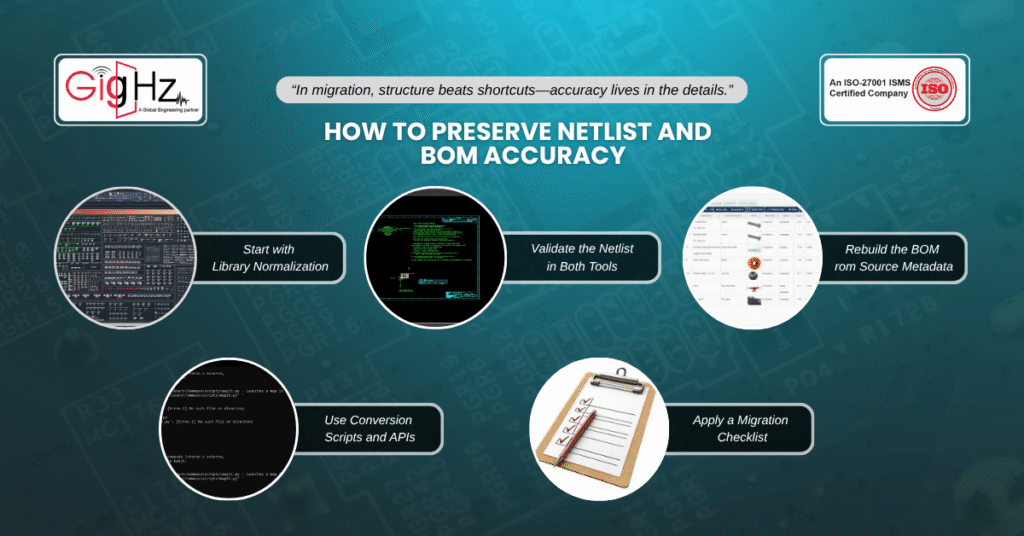
Here’s a proven approach we’ve used to maintain EDA tool data integrity across dozens of migrations:
1. Start with Library Normalization
- Align symbol, footprint, and 3D model naming conventions before migration.
- Map your metadata fields (like MPN, supplier, lifecycle status) to ensure consistent transfer.
- Run a cross-platform ECAD project transfer test on a small subset of parts first.
2. Validate the Netlist in Both Tools
- Export the netlist from your source tool.
- Generate the same netlist in the target tool after migration.
- Run a line-by-line comparison to confirm all signals and pin mappings are intact. This step is critical to preserve netlist during EDA migration.
- Always, prioritize LVS or netlist comparison tools in Altium Designer and Cadence Allegro to verify correct pin mapping.
3. Rebuild the BOM from Source Metadata
- Don’t rely on the auto-generated BOM in the target tool without checking.
- Compare the migrated BOM against the original ERP/PLM system.
- Pay special attention to MPNs, alternate parts, and custom fields like RoHS status.
- Go beyond MPNs — verify tolerances, RoHS/REACH compliance, and ensure alternate sourcing is in place to future-proof your design.
4. Use Conversion Scripts and APIs
- Most modern tools offer APIs or third-party scripts for migration.
- Customize them to map fields specific to your company’s workflow.
- Document every mapping rule so the process can be repeated consistently.
5. Apply a Migration Checklist
At minimum, your checklist should include:
- Netlist pin mapping verification
- BOM line item accuracy (MPNs, alternates, quantities)
- Footprint-to-symbol cross-check
- 3D model alignment for mechanical transfer
Pro Tips from the Field

- Never trust the defaults! Always verify that custom fields carry over.
- Pilot before full migration and then start with a small project, fix gaps, then scale.
- Use independent verification and a second engineer should cross-check netlist and BOM results.
- Lock your libraries first! As migrating from a moving target (unstable library) only multiplies errors.
- Archive everything! Yes, Keep a “golden source” copy of the original project for reference.
So, following these practices drastically reduces risk and helps maintain EDA tool data integrity throughout the transition.
Bottom Line
Summing Up, migrating ECAD platforms is not just about technical processes — it’s a severe data integrity challenge. As, every net, every component, every metadata field must transfer cleanly. Whereas, skipping checks can lead to silent design flaws or costly BOM mistakes that derail production.
So, If you focus on structured workflows, verify early, and prioritize both BOM accuracy in tool conversion and netlist preservation, you’ll make cross-platform ECAD project transfer far less daunting and more reliable.
Similarly, at At Gighz, we have guided engineering teams through complex migrations—ensuring clean netlists, accurate BOMs, and verified libraries every time.
Therefore, feel free to reach out to us at info@gighz.net for a free consultation.
Follow us at Linkedin for Trending posts https://www.linkedin.com/company/3483128/admin/dashboard/
Stuck in a loop of challenges? Always pick smart solution that works
Have you faced costly rework because 2D drawings skipped in MCAD workflows?
Effective way to prevent MCAD documentation errors recalls?
Please answer both poll questions before submitting.
Thank you for your response! 😊
Latest Post
Get Customized Engineering CAD Design Service

Book a Free Consultation Call
Partner with Gighz and bring your most innovative design concepts to life. Our engineering cad services accelerate development so you can focus on your big vision.
